Team Seats
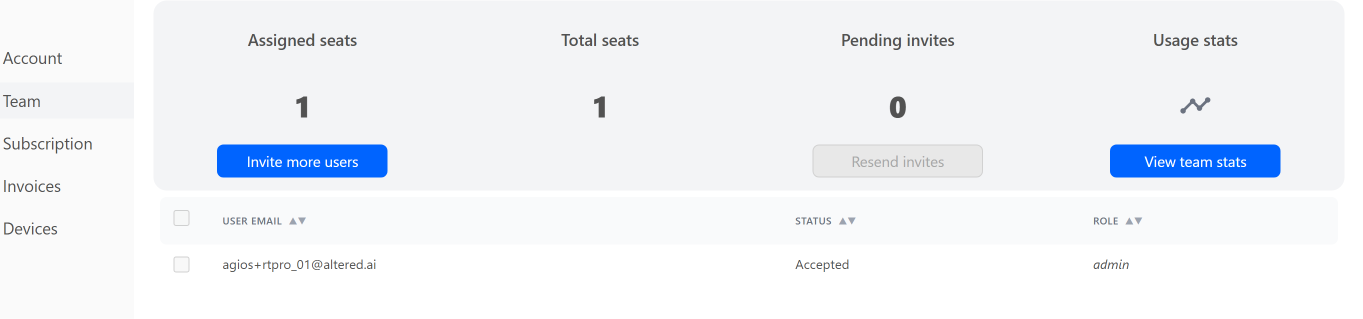
Add seats as the team grows, release them when it shrinks. The panel shows total against allocated, so an unused seat is visible rather than quietly billed.
Team & Enterprise plans →Your plan, your seats, your compute and your invoices all live inside the app. Nothing here needs a support ticket or a sales call.
Open Real-Time Pro, pick Account from the left rail, then the Subscription tab. Alongside it sit Team, Invoices and Devices.
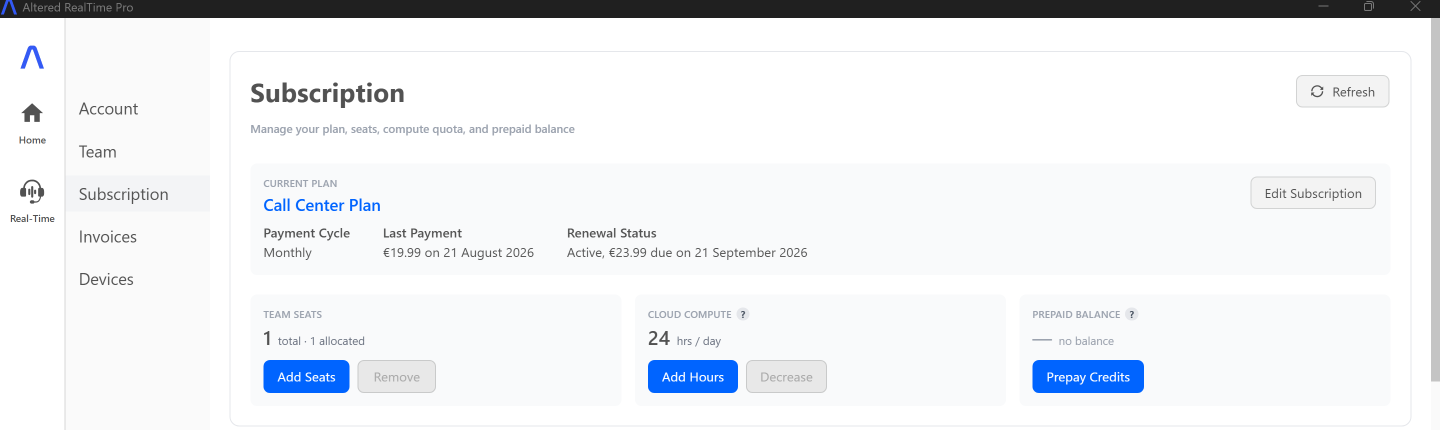
Three controls, each of which takes effect against the running subscription.

Add seats as the team grows, release them when it shrinks. The panel shows total against allocated, so an unused seat is visible rather than quietly billed.
Team & Enterprise plans →Your Cloud Compute allowance is a number of hours per day. Raise it when the team leans on remote processing, lower it when the work moves back onto local CPUs.
Cloud Compute pricing →Prepay credits and draw usage down against the balance instead of settling each cycle. The current balance sits alongside the plan, so there is one place to look.
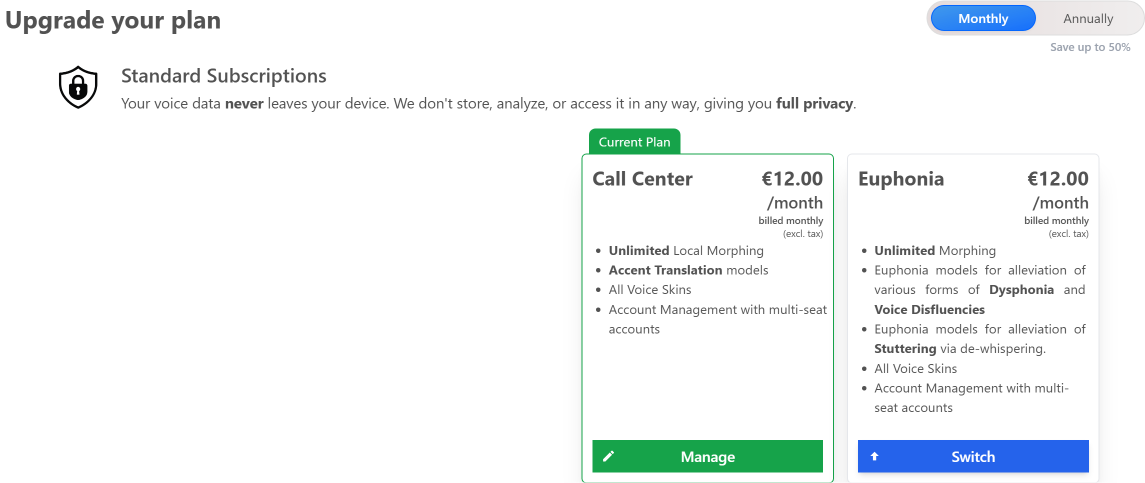
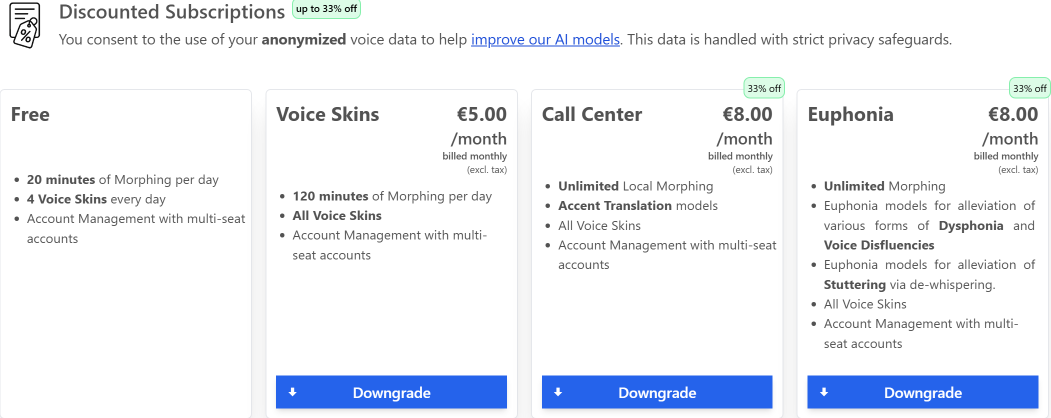
Upgrade your Plan: lists every plan side by side, with the one you are on marked. Chose Monthly or Annually for a better price with longer committment.
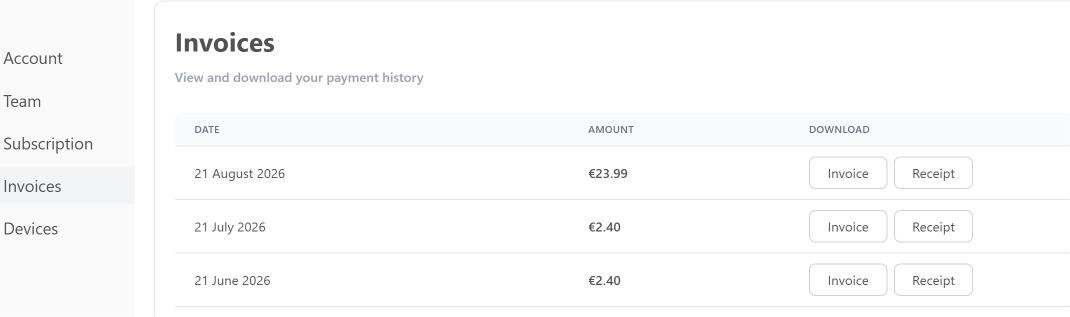
Every charge against the account is listed under the Invoices tab, with the invoice and the receipt each downloadable on its own - so finance never has to ask us for a copy.
The Team tab is where seats become people. Assign seats to people, check pending invites and member roles.
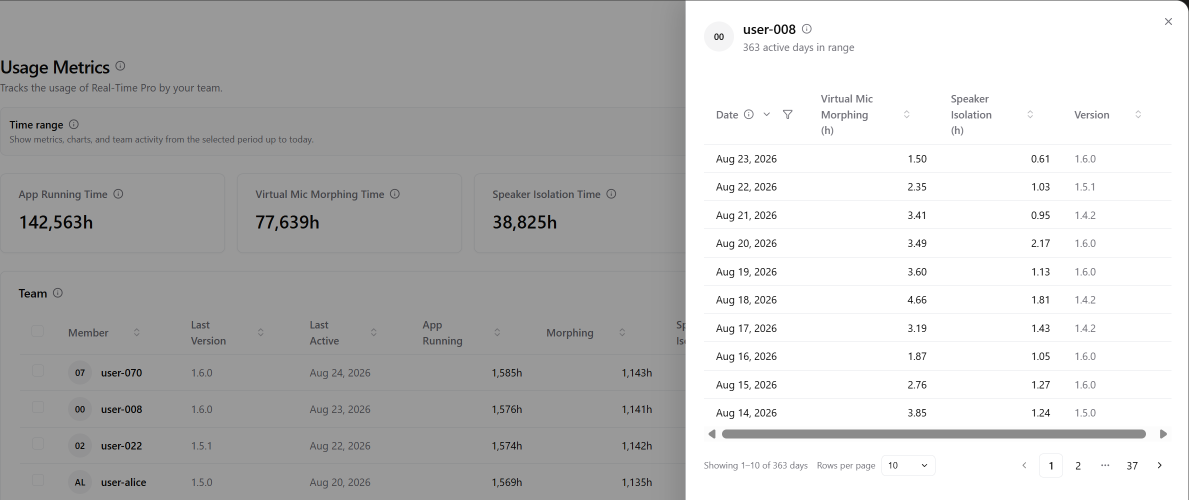
View Usage Statistics for the whole account at a time-period.
Four headline totals for the account - app running time, virtual mic morphing time, speaker isolation time and cloud compute time - sit above a per-member table. Each row carries the version that member last ran, when they were last active, and their hours in each model. It sorts on any column and pages, so it stays readable well past a hundred seats.
Open a member and the same numbers break down day by day, alongside the version they were running on each of them - which is how a regression narrows to a date and a build rather than a hunch.
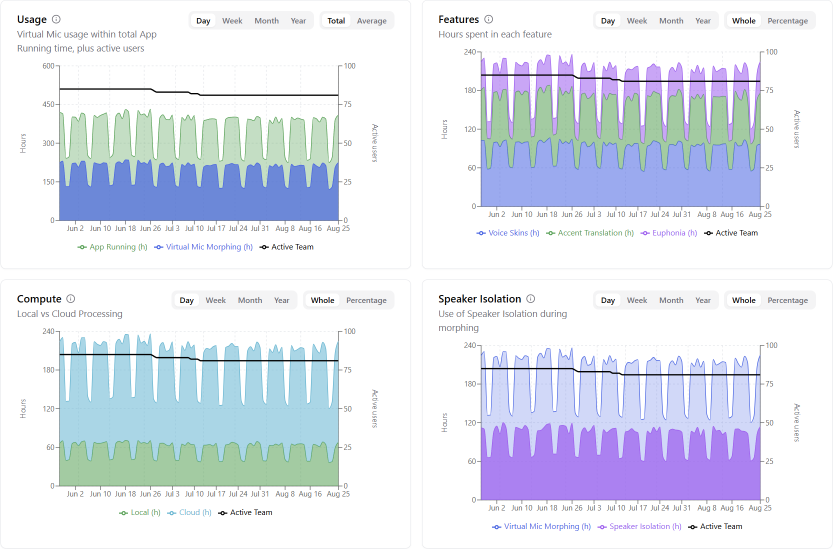
Four charts plot the same period by day, week, month or year, each against the count of active team members. Usage tracks virtual mic time inside total app running time; Features splits the hours by model; Compute weighs local against cloud processing; and Speaker Isolation shows how much morphing ran with isolation on. Read them as totals, or as per-user averages and percentages.
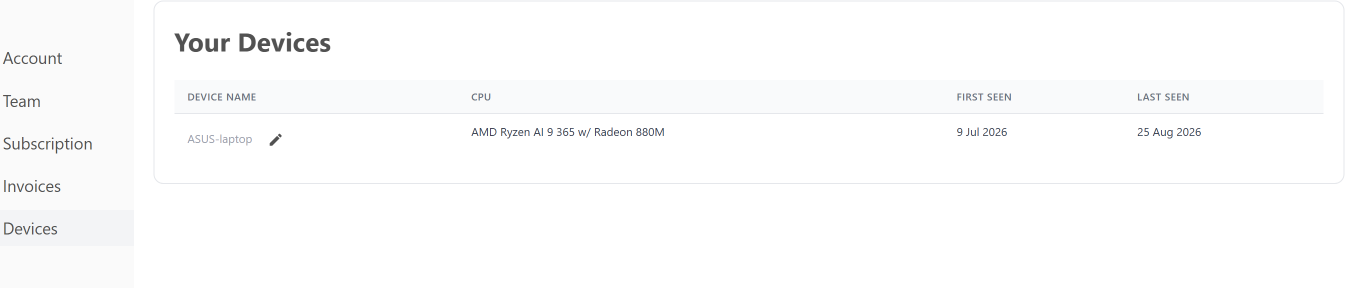
Devices tab shows the silicon used by each seat.
A release that disagrees with your setup is a rollback, not a wait.
Under Settings, every version the machine has installed is listed with the dates it was first installed and last used. The build you are on is flagged Installed, and separately whether it is the Latest.
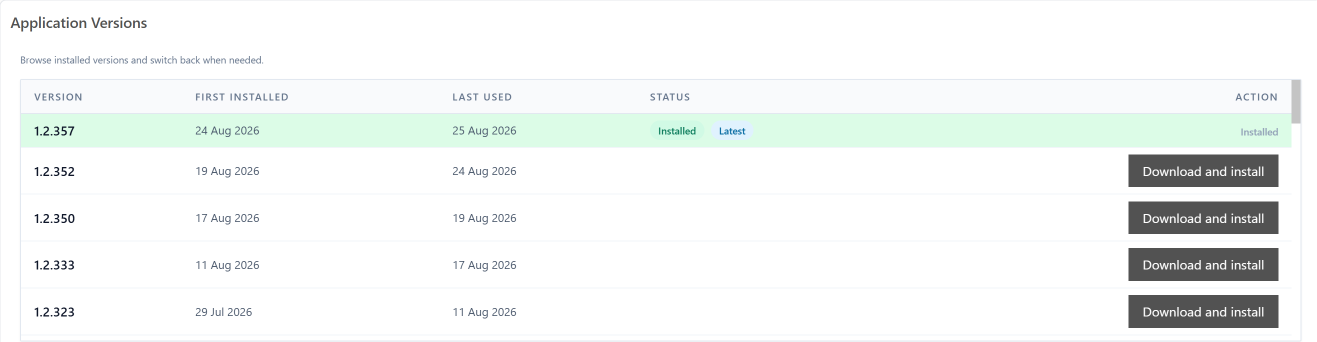
Any earlier build reinstalls in a click, so you can freeze on a version that works for your hardware rather than take whatever ships next. Leave automatic updates on if you would rather stay current.
If the Subscription tab is not showing what you expect, update to the latest version first - the panel gains capabilities with the app, and version history lives under Settings.
Otherwise write to support@altered.ai or search the Help Center.